
Installation Method / How to Use
This page explains how to configure the Sansan with kintone plugin.
Please refer to kintone help's "Adding System Management Plugins" for how to add plugins to kintone.
What you can achieve with Sansan with kintone
The Sansan with kintone can be used to configure the following features.
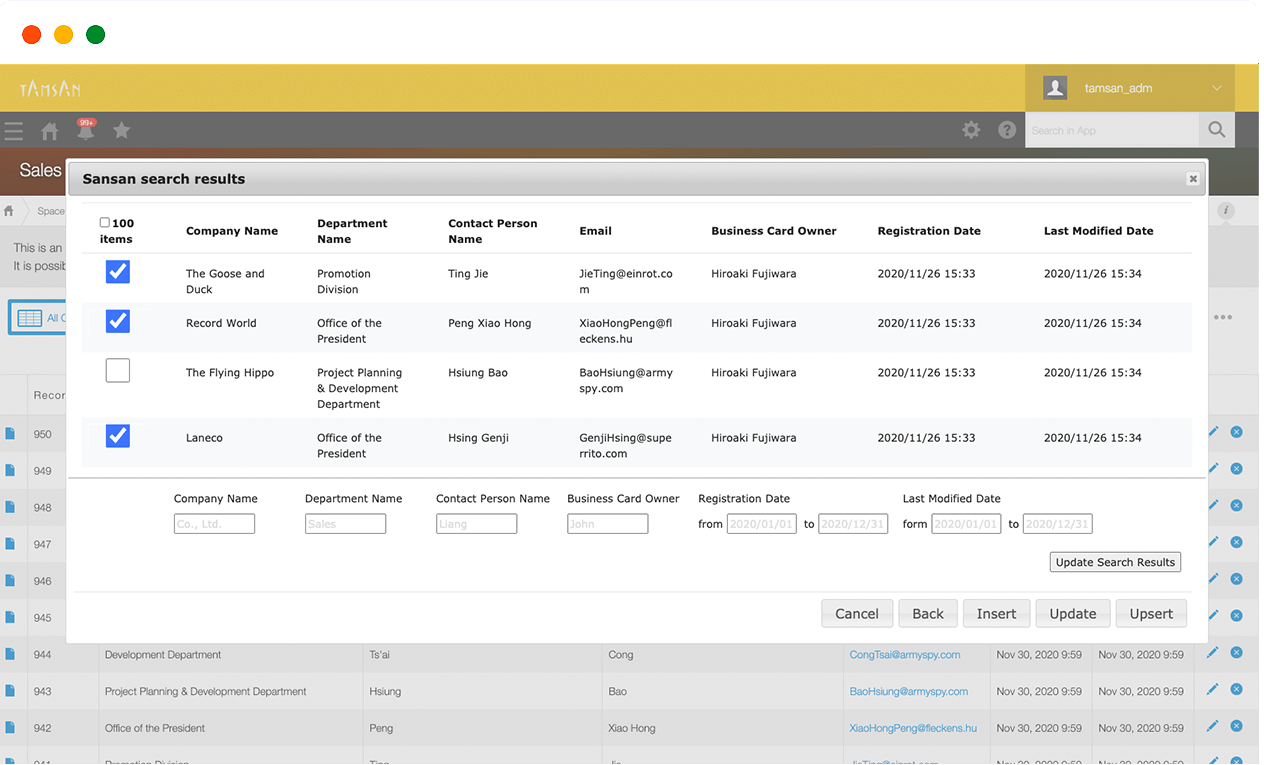
1. Bulk registration and bulk updating based on Sansan data
-
new registration with bulk importing of Sansan data to kintone
-
bulk updating of data brought over from Sansan
-
Simultaneous bulk new registration and bulk updating
Updating of data brought over from Sansan and bulk new registration of data that has not been brought over
-
Linkage and bulk updating of kintone data and Sansan data using your email address
2. Incorporate Sansan data for each record
-
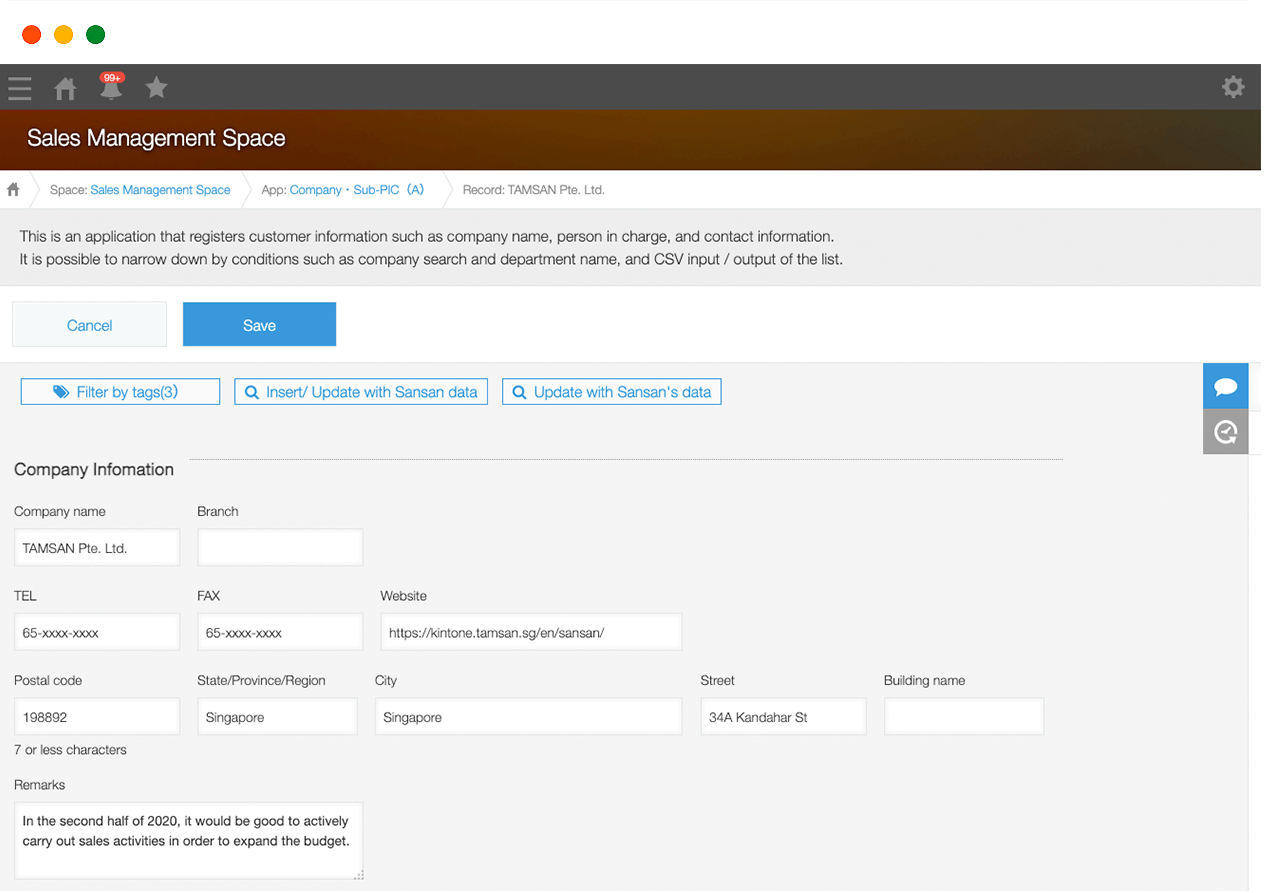
From the kintone detailed record screen, the Sansan data you want to bring over is retrieved, and the values are inserted into the relevant fields
-
For data that has been brought over from Sansan, update Sansan data with one button from the kintone detailed record screen
Getting Started
-
Request a trial version of the kintone with Sansan plugin
-
Adding plugins to kintone
Please refer to "Adding Plugins to System Management" on the kintone help page.
-
Issuance of Sansan API key
Click this link while logged in to Sansan to go the API key issue page.
Reference:Sansan API Documentation: Issuing API Keys
Advance preparations: App build confirmation
To support a wide range of different kintone apps,
we include a step for selecting the kintone app build you use.
Check which of the following options applies to the kintone app build you use
and go to the relevant page for the detailed installation method and usage explanations.
Supported App Builds

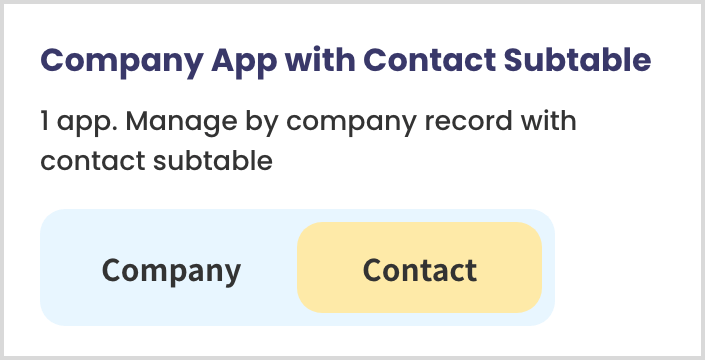


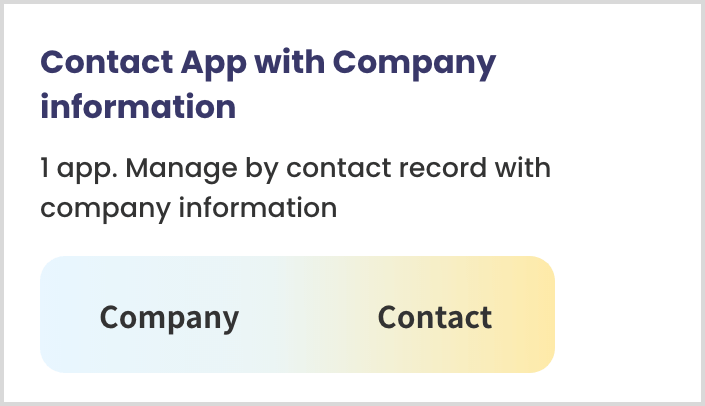
1. Company App + Contact Person Subtable Management
For using the company app to manage one set of company records with subtables for multiple contact persons within the same app.
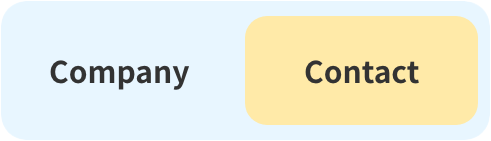
- Company App (one record): K.K. TAMSAN
- Subtables (two tables) within the same record: [Contact Person] Amagi, [Contact Person] Taresore
Example: Managing two contact persons working at K.K. TAMSAN:
Sample case from the kintone app screen
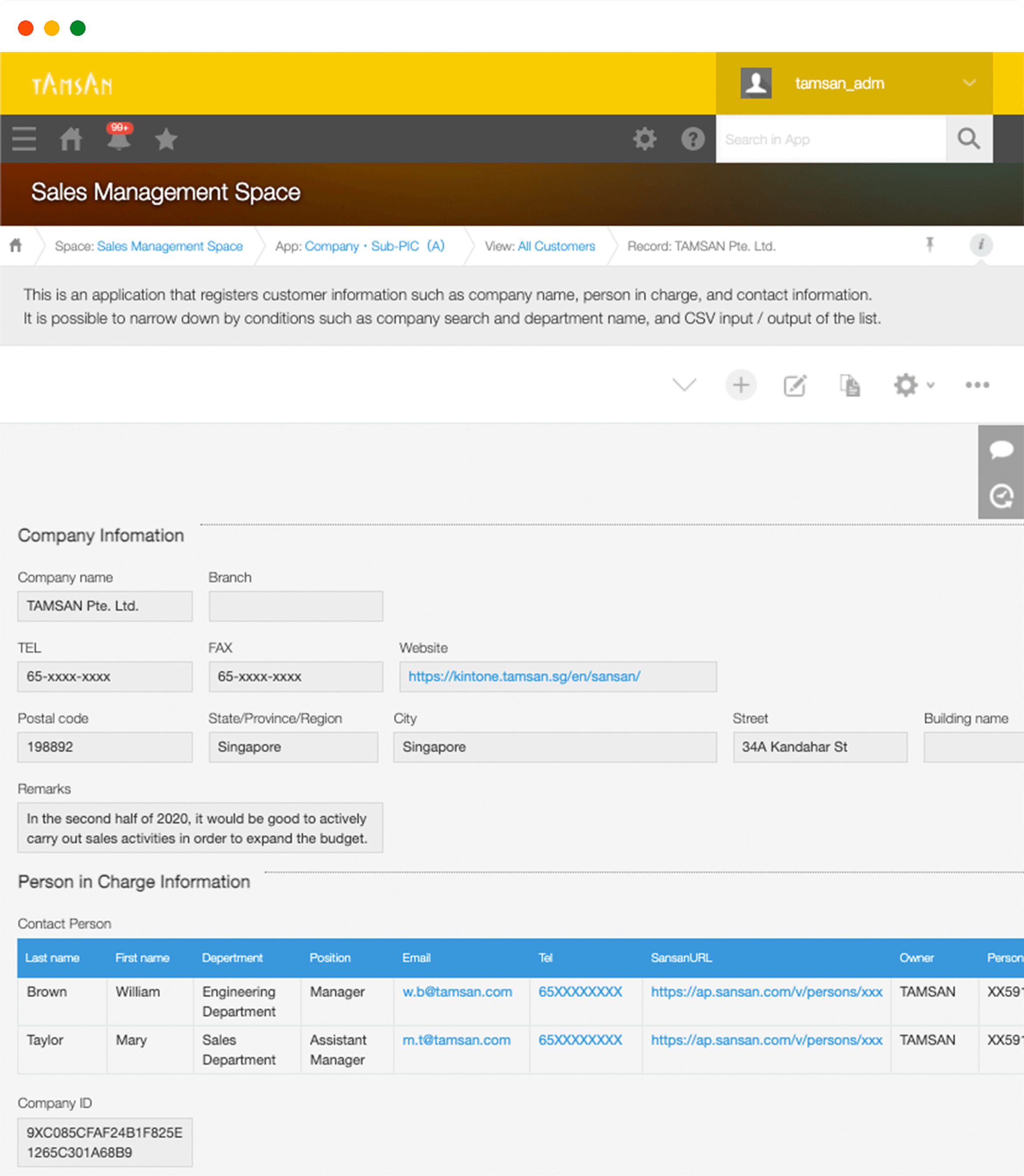
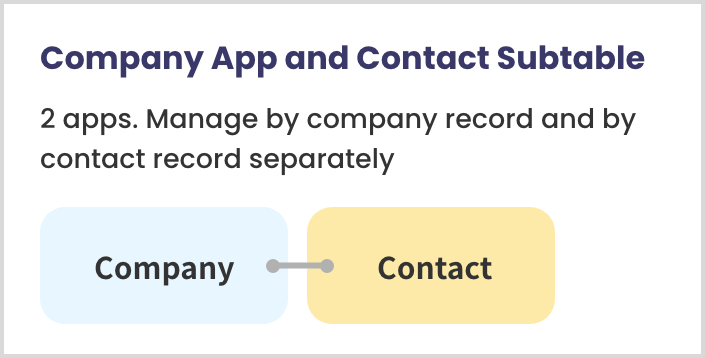
2. Company App + Contact Person App
For separately managing a company app and contact person app to form correlation by checking the company app from the contact person app.

- Company App (one record): K.K. TAMSAN
- Contact Person app (two records): [Contact Person] Amagi, [Contact Person] Taresore
Example: Managing two contact persons working at K.K. TAMSAN:
Sample case from the kintone app screen

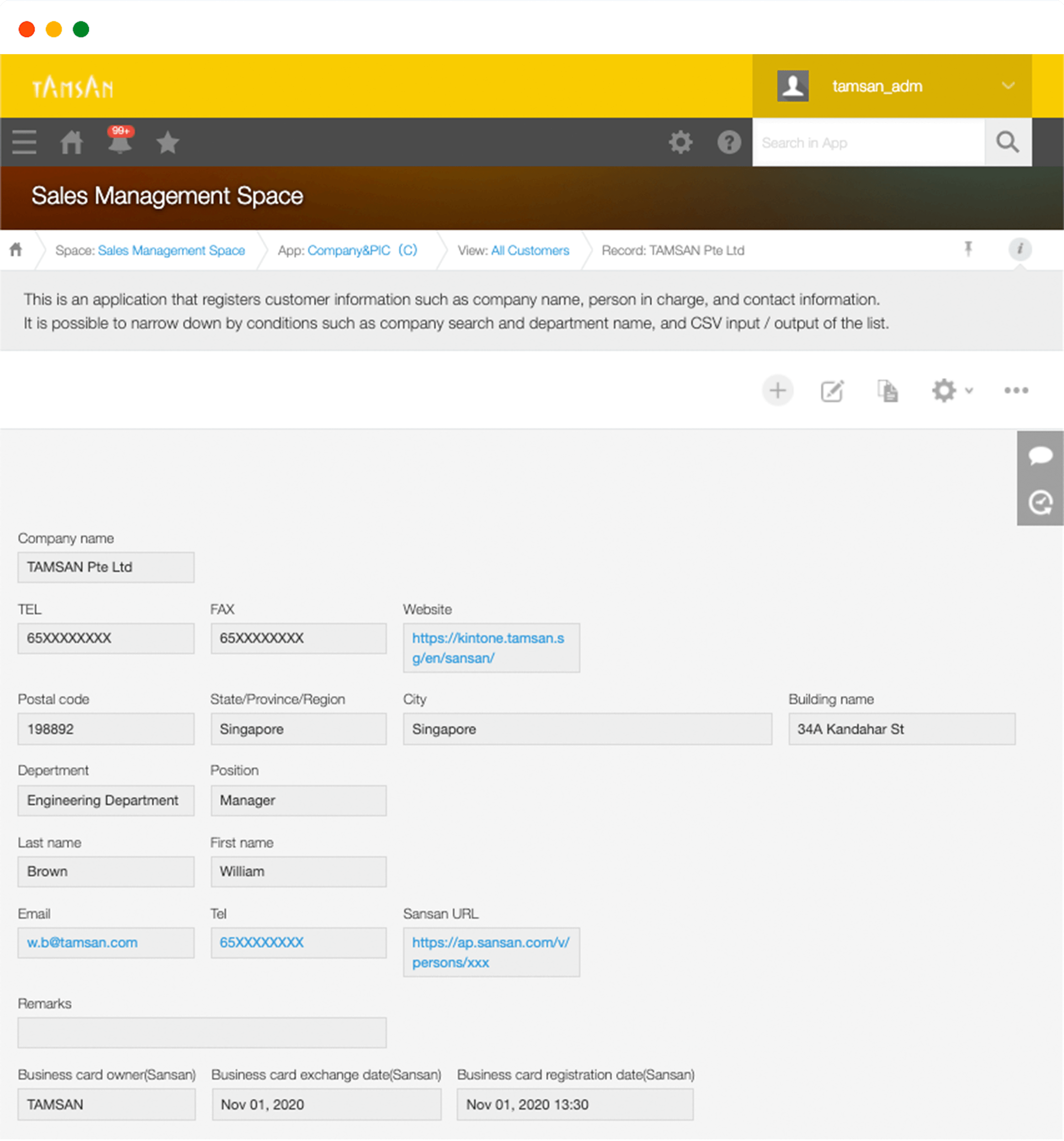
3. Contact Person/Company App
For management of contact person information and company information together in one app.

- Contact Person app (two records): [Contact Person] Amagi, [Contact Person] Taresore
※The information for K.K. TAMSAN is input into both records.
Example: Managing two contact persons working at K.K. TAMSAN:
Sample case from the kintone app screen
If the system you use is not supported
Please direct your inquiries to the following contact point for individual consultation.
Some cases are resolved through customization (separate Pricings required).
About Mapping
※kFor configuring the necessary fields in the kintone app, please refer to the installation explanation page for each app build.
For Company App + Contact Person Subtable Management
For Company App + Contact Person App
For Company/Contact Person App